

Introduction
As a developer we all know that using available free, open source and paid packages is common in software development. So it is important for developer to know how use the packages in the solution. Most software uses free, open source and common packages however sometimes we need to use private and paid packages. So this articles provides you insight into how to configure and use private packages in your Dotnet project using Visual Studio 2022 with an example of Telerik private package. When we use private, paid and licensed packages that are needed in our project then, we need to configure it and install it. Setting and using private packages are different than the free online packages that we use in almost all projects.
Let’s begin.
Step 1– Open Visual Studio and then go to Tools-> NuGet Package Manager ->Setting and
then Go to NuGet Package Manager-Package Sources as shown below. And click on + green button. Provide the name for the package and set the feed URL to https://nuget.telerik.com/v3/index.json. Then click on OK.

Step 2 – Close visual studio and then create or load your existing project.
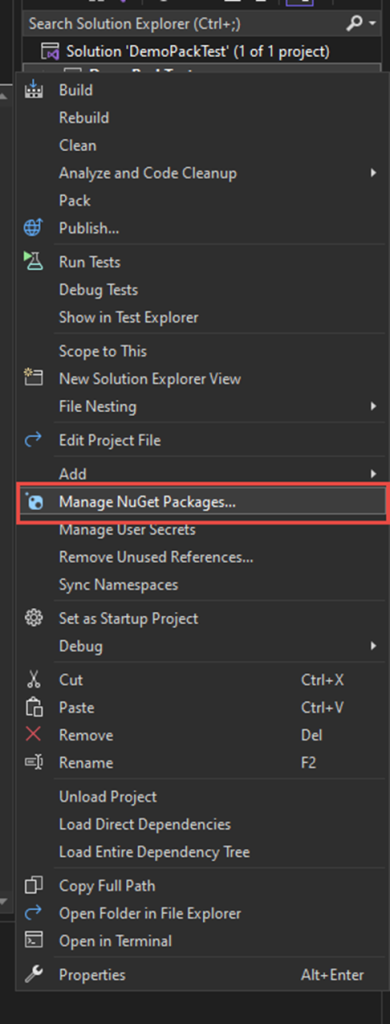
Step 3- Go to Right click on the project and go to Manage NuGet packages as shown below.
Step 4 – In the upper right corner of the Manage Packages for Solution window, just select the Telerik package Source we have just created.
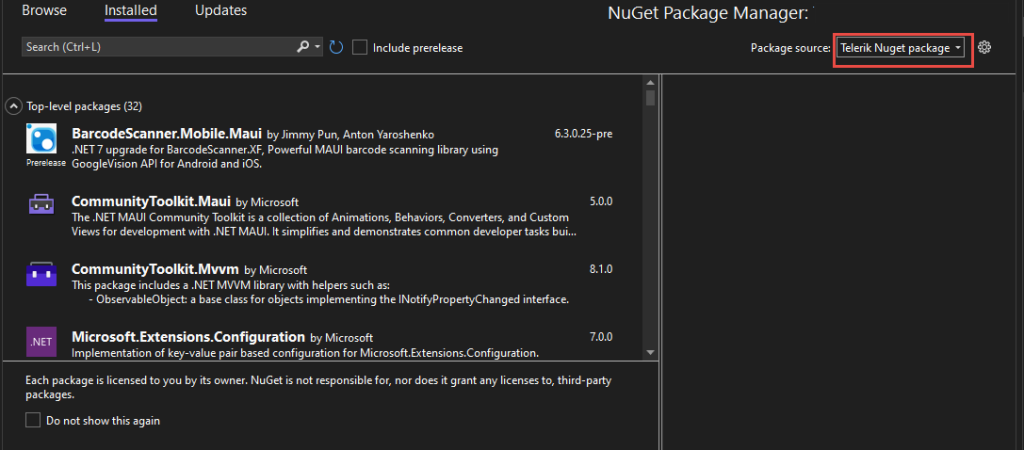
Step 5 – Then you can choose Online or Browse the lists of packages.
Step 6 – Once you change the source for package to Telerik then you have to provide your credentials. Windows Authentication dialog box will appear where you need to provide your user and password.
Enter your credential and click on OK.

After that all the packages that are licensed to your account will be available in the Visual Studio NuGet Package manager.
You can then install if it is not already installed in your project. If your project already contains those packages and you just started working on the project containing private NuGet packages then first you just need to follow the above steps then all packages will start working without throwing any errors related with licenses in your local development environment.
Conclusion
Hence, in this article we have learned to use private NuGet packages. I hope you find it helpful to configure and use private packages in your .NET 7 project using Visual Studio 2022. Furthermore, similar way we can setup and use other private NuGet packages such as Grail and so on.
I constantly spent my half an hour to read this web site’s content all the
time along with a mug of coffee.